Back in August, we announced plans to give publishers the ability to allow multiple Google-certified ad networks to compete for display ad space on your site. While this feature was initially available only to publishers located in North America and Europe, we're happy to announce that all publishers will now have access to these participating ad networks.
Allowing these ad networks to compete for your display ad space means that more ads will be eligible to appear on your pages, leading to potentially higher earnings in the long run. Our system will show the ads that will generate you the most profit, whether they're from these Google-certified ad networks or the AdWords program. As a reminder, all Google-certified ad networks are required to adhere to our standards for user privacy, ad quality, and speed. In addition, you can use the controls in your Ad Review Center to specify which ad networks can appear on your pages.
Finally, some ad networks use tools similar to Google's interest-based advertising to show more relevant ads to users on the sites they visit. We'll allow certified networks who comply with user privacy guidelines to show ads using these tools, but they won't be permitted to collect data from your site for the purpose of subsequent interest-based advertising. You'll be able to opt out of receiving ads based on user interests from these certified networks, and we have changed our requirements for third-party ad serving to reflect this. We're dedicated to providing users with a positive experience, while helping publishers effectively monetize the ads appearing on their sites. We believe you'll find that more competition translates into better ads and increased revenue in the long run.
We're continuing to certify additional ad networks, so please keep in mind that you won't see immediate changes in your earnings or ads. As we continue to add new ad networks, you'll see them appear in your Ad Review Center. To learn more about managing your account settings and Google-certified ad networks, visit our Help Center.
Showing posts with label AdSense features. Show all posts
Showing posts with label AdSense features. Show all posts
Tuesday, March 16, 2010
Wednesday, March 3, 2010
Troubleshooting tips part III: Performance reports & earnings
Once ads are displaying fine on your pages, your next concern may be your earnings. To make sure all your impressions and clicks are recorded correctly, check out the following notes and tips.
First, be aware that your AdSense reports are updated every 15 to 30 minutes, but can sometimes take up to 24 hours to update. So at times, if you don't see the numbers you expect in your reports, be sure to check again later once your reports have been updated.


Channel data can be a bit tricky, so make sure to pick distinctive names to differentiate between URL and custom channels -- that way, you'll know exactly what data you're viewing. We also recommend checking out our optimization tips for channels to help you determine which ad units and placements are performing well, and how you can use this information to earn more revenue.
Next week, we'll look at publisher controls and how to filter certain ads from appearing on your site.
First, be aware that your AdSense reports are updated every 15 to 30 minutes, but can sometimes take up to 24 hours to update. So at times, if you don't see the numbers you expect in your reports, be sure to check again later once your reports have been updated.
- Do you use the Allowed Sites feature? Allowed sites are websites or URLs on which AdSense publishers allow or wish to have their Google ads displayed. If you use the allowed sites feature in your AdSense account, be sure to add all the websites you're displaying ads on, to the list of allowed sites. If you forget to add a sites where you're displaying ads, then impressions and clicks on the sites will be shown in your reports, but advertisers won't be charged and the clicks won't earn any revenue.

- Do you have channels set up to track your clicks and impressions?
- If your channel reports show more data than your aggregate reports, it might be the case that your domains or ad units are being tracked simultaneously on multiple URL or custom channels. If that's the case, then to see your complete, accurate statistics, visit your Advanced Reports page. When you select the Aggregate Data radio button and click Display report, you'll see all clicks, page impressions, and earnings from your account with no duplication of data.
- Alternatively, you may see that your aggregate reports show more data than your channel reports, even if all your pages are tracked with channels. This can occur sometimes when your page is displayed within a frame; in this case data won't appear in your channel reports but will display in your aggregate reports.
- If your channel reports show more data than your aggregate reports, it might be the case that your domains or ad units are being tracked simultaneously on multiple URL or custom channels. If that's the case, then to see your complete, accurate statistics, visit your Advanced Reports page. When you select the Aggregate Data radio button and click Display report, you'll see all clicks, page impressions, and earnings from your account with no duplication of data.

Channel data can be a bit tricky, so make sure to pick distinctive names to differentiate between URL and custom channels -- that way, you'll know exactly what data you're viewing. We also recommend checking out our optimization tips for channels to help you determine which ad units and placements are performing well, and how you can use this information to earn more revenue.
- If you have ad placements, have you named them accurately? Once you create channels for your ad units or domains, you can turn your custom channels into ad placements that advertisers can specifically target their ads to, using placement targeting. When entering a description for your channels to appear as ad placements, be sure to enter something informative and accurate to represent your site well.
Next week, we'll look at publisher controls and how to filter certain ads from appearing on your site.
Thursday, February 25, 2010
Better site traffic data and new name for Google Ad Planner
Already, tens of thousands of AdSense publishers have used Google Ad Planner to share information about their website with advertisers. We are continuing to invest in the product in order to provide the deepest, most accurate data possible. To that end, we have improved how we calculate site traffic by over 10%, upgraded the way we publish opt-in Google Analytics data from publishers, and renamed the product to DoubleClick Ad Planner. Visit the DoubleClick blog to read more about the new product features and new name.
As always, anyone can use the newly renamed DoubleClick Ad Planner whether or not they are a DoubleClick customer. The product remains free and open for everyone. The URL for publishers to update their profile remains the same: www.google.com/adplanner/publisher.
If you are new to Ad Planner, we invite you to learn more about claiming your site.
As always, anyone can use the newly renamed DoubleClick Ad Planner whether or not they are a DoubleClick customer. The product remains free and open for everyone. The URL for publishers to update their profile remains the same: www.google.com/adplanner/publisher.
If you are new to Ad Planner, we invite you to learn more about claiming your site.
Tuesday, February 23, 2010
Troubleshooting tips part IIb: Ad relevance and targeting continued
To follow up on our previous post about ad relevance and targeting, let's look at some other reasons why you may experience ad targeting issues on your site.
- Have you blocked the AdSense crawler's access to your pages? The AdSense crawler is an automated program that scans your web pages and tracks content for indexing. Sometimes we don't crawl pages because the AdSense crawler doesn't have access to your pages, in which case we're unable to determine their content and show relevant ads. Here are a few specific instances when our crawler can't access a site:
- If you use a robots.txt file which regulates the crawler access to your page. In this case, you can grant the AdSense crawler access by adding these lines to the top of your robots.txt file:
User-agent: Mediapartners-Google*
Disallow: - If the sites you place the ad code on are behind a login, our crawler won´t be able to access your site. To grant access to such pages, please follow these instructions. Also, be sure to regularly check your site diagnostics tool to be aware of any blocked pages.
- Is your site language supported by AdSense? Check to make sure that your site has a substantial amount of text-based content in one of the languages supported by AdSense. When there's enough content, our technology detects the primary language of each of your pages and delivers relevant ads in the appropriate language, even if your site contains multiple supported languages.
- The crawlers used by Google AdSense index content by unique URL. As a result, if the URL is the same regardless which language the user chooses to view the pages in, our system will only have the language version it received when indexing this URL. This means that we'll show ads according to the page our system has in its cache, which might not match the language the user is viewing the page in. In order to resolve this, we suggest either of the following:
- Create separate directories for each language, such as http://www.site.com/en/index.html
- Send GET variables (encoded user information appended to the end of the URL after the ? character) in the URL to determine which language should be shown such as for example http://www.site.com/index.php?lang=en
- Create separate directories for each language, such as http://www.site.com/en/index.html
- The crawlers used by Google AdSense index content by unique URL. As a result, if the URL is the same regardless which language the user chooses to view the pages in, our system will only have the language version it received when indexing this URL. This means that we'll show ads according to the page our system has in its cache, which might not match the language the user is viewing the page in. In order to resolve this, we suggest either of the following:
- Do you see public service announcements (PSAs) on a site which previously showed paid ads before? If your AdSense account requires PIN or phone verification, you'll see a prompt in your account when you sign in. If you fail to verify your PIN or phone number (requirements vary depending on your location), then you may see PSAs on your site. If this is not your case, please visit our Help Center for further information.
Wednesday, January 13, 2010
AdSense for Domains Expands Use of Keyword Hints
You asked for it, you got it! AdSense for Domains, which launched a year ago to help publishers earn revenue through ads placed on undeveloped domains, now uses optional keyword hints more often. These keywords are suggestions supplied to Google by domain owners about the types of content users are looking for when they arrive on an undeveloped domain. They are used to help our system determine the best ads to place on these domains. For example, with the domain www.rockstarsand.com, a publisher might suggest the keywords "bitumen" and "mining" so that ads may appear from advertisers offering oil extraction products.
Keyword hints remain optional. When keyword hints are provided by the publisher, our ad-matching systems will use them more often. As always, we aim to provide the most relevant ads for the user, the best value for advertisers, and the best returns for publishers. This means in some cases, keyword hints will be ignored when we have evidence that other targeting approaches perform better.
Instructions for setting keyword hints for your domains can be found here.
The AdSense for Domains team is continuing to work on additional product improvements, that we will be announcing in the coming months.
Keyword hints remain optional. When keyword hints are provided by the publisher, our ad-matching systems will use them more often. As always, we aim to provide the most relevant ads for the user, the best value for advertisers, and the best returns for publishers. This means in some cases, keyword hints will be ignored when we have evidence that other targeting approaches perform better.
Instructions for setting keyword hints for your domains can be found here.
The AdSense for Domains team is continuing to work on additional product improvements, that we will be announcing in the coming months.
Monday, December 7, 2009
Search for ads in the Ad Review Center
When we announced the new AdSense interface a few weeks ago, we mentioned how we've been working on building more functionality into the Ad Review Center to make it easier for you to find and manage your ads. Today, we'd like to let you know that we're introducing the ability to search for ads in the Ad Review Center. This option is currently available to a limited number of publishers using the new AdSense interface, but we're working on rolling this out more widely as we invite more publishers to test the new interface.
The search feature has been designed to improve your efficiency when finding ads to review. You'll be able to search for ads by keyword, display URL, or destination URL. For example, you can now search for all ads that have been placement targeted to your site with the destination URL of one of your competitors' websites. In addition, you can search across multiple AdSense products, like AdSense for mobile content and AdSense for feeds, and also specify whether you'd like to view allowed, blocked, or new ads.

Although we aren't able to add more publishers to the test at this time, we wanted to give you a glimpse into one of the ways we're working to make the Ad Review Center easier to use. We'll be collecting feedback from the first group of publishers testing this feature, and plan to improve it and then expand to additional publishers in the coming months.
The search feature has been designed to improve your efficiency when finding ads to review. You'll be able to search for ads by keyword, display URL, or destination URL. For example, you can now search for all ads that have been placement targeted to your site with the destination URL of one of your competitors' websites. In addition, you can search across multiple AdSense products, like AdSense for mobile content and AdSense for feeds, and also specify whether you'd like to view allowed, blocked, or new ads.

Although we aren't able to add more publishers to the test at this time, we wanted to give you a glimpse into one of the ways we're working to make the Ad Review Center easier to use. We'll be collecting feedback from the first group of publishers testing this feature, and plan to improve it and then expand to additional publishers in the coming months.
Thursday, December 3, 2009
A deeper look at channels: Targetable channels (Part III of III)
During the past 2 weeks, we walked you through the basics of URL and custom channels. In the final episode, Laurence Moore talks about the two ways in which advertisers can target your website: contextual and placement targeting. You'll also learn how to make your channels targetable by advertisers and label them with information such as size, location, and audience so the advertiser can easily find your channels and make an informed decision when choosing to target your site.
Thank you for watching the videos in our channels series, we hope you found them useful. If you'd like to watch more videos from the AdSense team, visit our official channel on YouTube.
Thank you for watching the videos in our channels series, we hope you found them useful. If you'd like to watch more videos from the AdSense team, visit our official channel on YouTube.
Wednesday, December 2, 2009
Category filtering for French, German, and Spanish ads
We recently expanded category filtering to publishers in additional English-speaking countries, and we're happy to announce that the feature is now available for ads in French, German, and Spanish. With category filtering, you can prevent ads from up to 8 specific categories from appearing on your pages. Ads in these categories will be filtered if they're in any of the four supported languages, regardless of how they've been targeted to your pages.
To set up category filtering, sign in to your AdSense account and visit your Ad Review Center, located under the 'AdSense Setup' tab. Once you click 'change', you'll be able to view the full list of categories you can filter. In addition, we'll show you the percentage of revenue and ad impressions you've been receiving from each category in the last 30 days, which can help you understand the impact that applying filters might have.
For more information about category filtering, feel free to visit our Help Center. We're still working towards making this feature available in more languages, and we'll be sure to let you know about any updates.
To set up category filtering, sign in to your AdSense account and visit your Ad Review Center, located under the 'AdSense Setup' tab. Once you click 'change', you'll be able to view the full list of categories you can filter. In addition, we'll show you the percentage of revenue and ad impressions you've been receiving from each category in the last 30 days, which can help you understand the impact that applying filters might have.
For more information about category filtering, feel free to visit our Help Center. We're still working towards making this feature available in more languages, and we'll be sure to let you know about any updates.
Thursday, November 5, 2009
A new AdSense interface: now in beta
Today, at the Content Revenue Strategies conference in New York City, we announced that a small group of publishers will begin testing a new AdSense interface in limited beta. Inspired by the feedback we've heard directly from you, the new interface includes features designed around your top three requests:
Provide insights to help you make more informed decisions about your sites.
The new AdSense interface includes more detailed performance reports and enables you to view daily stats in graphical formats. It also will provide you with additional metrics such as the amount you've earned from various ad, targeting and bid types. Here's a glimpse at what the new reports currently look like in our beta:

Offer you more control over the ads that appear on your sites.
We're also continuing to make improvements to the Ad Review Center. Upcoming enhancements will give you more options to manage the ads that appear on your site, as well as a cleaner interface that makes it easier to find and review them within the Ad Review Center.
Help you manage your account more efficiently.
We've streamlined the AdSense interface to simplify common tasks, such as making a change to several ad units simultaneously. Additionally, to help you get the most out of AdSense, we've added more relevant help on every page, a message inbox for tips from our team, and alerts with important account related notices.
In order to collect feedback on these enhancements from publishers in multiple countries, we're rolling out the beta test of the new interface today in English, Spanish, French, German, Italian, and Japanese. Although we aren't able to extend invitations to additional publishers yet, we're planning to roll this test out to thousands of publishers over the coming weeks. We'll be sending email notifications to the beta test participants to let them know.
Thanks again for all of your feedback so far, and we'll be sure to let you know when we're able to offer the new interface more widely.
Provide insights to help you make more informed decisions about your sites.
The new AdSense interface includes more detailed performance reports and enables you to view daily stats in graphical formats. It also will provide you with additional metrics such as the amount you've earned from various ad, targeting and bid types. Here's a glimpse at what the new reports currently look like in our beta:

Offer you more control over the ads that appear on your sites.
We're also continuing to make improvements to the Ad Review Center. Upcoming enhancements will give you more options to manage the ads that appear on your site, as well as a cleaner interface that makes it easier to find and review them within the Ad Review Center.
Help you manage your account more efficiently.
We've streamlined the AdSense interface to simplify common tasks, such as making a change to several ad units simultaneously. Additionally, to help you get the most out of AdSense, we've added more relevant help on every page, a message inbox for tips from our team, and alerts with important account related notices.
In order to collect feedback on these enhancements from publishers in multiple countries, we're rolling out the beta test of the new interface today in English, Spanish, French, German, Italian, and Japanese. Although we aren't able to extend invitations to additional publishers yet, we're planning to roll this test out to thousands of publishers over the coming weeks. We'll be sending email notifications to the beta test participants to let them know.
Thanks again for all of your feedback so far, and we'll be sure to let you know when we're able to offer the new interface more widely.
Thursday, October 29, 2009
A more customized search experience for your website
We've posted a couple times about how the Custom Search Element can help provide a more customized search experience for your users while enabling you to earn money. Today we're excited to announce two new features for the Custom Search Element that will enable you to further customize your website search to the look and feel of your site: themes and rich snippets.
Themes
You can now customize the layout and styles of your Custom Search Element. To select a theme for your Custom Search Element, just go to your Custom Search Engine account at http://www.google.com/cse/manage/all and click Control panel. On the Control panel page, in the left-hand menu, click Look and feel.
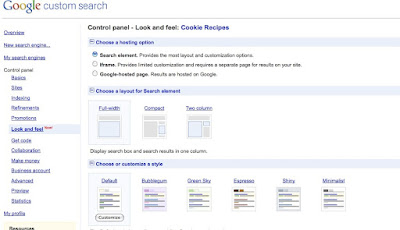
You can now choose from a number of layouts and color styles for your Custom Search Element. You can also preview your selected theme. Here's an example of the 'Shiny' theme:
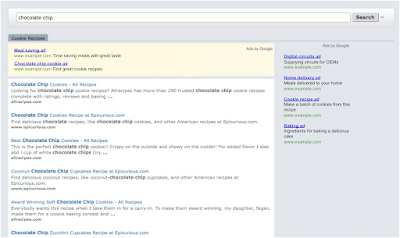
If you'd like to tinker further with the look and feel of your Custom Search Element and you're familiar with CSS and JavaScript, take a look at this Custom Search Control documentation.
Rich snippets
Rich snippets are another new feature that allow you to customize the actual Custom Search Element search results with additional relevant content, like thumbnail images and actions. We like to think of rich snippets as a way to add more flair to your Custom Search Element search results.
Here's an example of search results from a Custom Search Element which uses both themes and rich snippets. The thumbnail image next to each search result shows rich snippets in action.
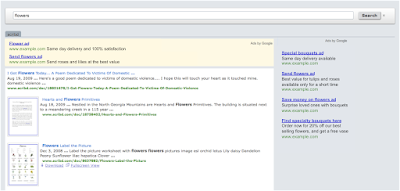
Rich snippets require you to mark up the page with metadata. For more information, check out the Custom Search Developer's Guide.
If you have any feedback for us on either of these new features or on the Custom Search Element itself, please leave a comment. We love hearing what publishers have to say about Custom Search!
Themes
You can now customize the layout and styles of your Custom Search Element. To select a theme for your Custom Search Element, just go to your Custom Search Engine account at http://www.google.com/cse/manage/all and click Control panel. On the Control panel page, in the left-hand menu, click Look and feel.

You can now choose from a number of layouts and color styles for your Custom Search Element. You can also preview your selected theme. Here's an example of the 'Shiny' theme:

If you'd like to tinker further with the look and feel of your Custom Search Element and you're familiar with CSS and JavaScript, take a look at this Custom Search Control documentation.
Rich snippets
Rich snippets are another new feature that allow you to customize the actual Custom Search Element search results with additional relevant content, like thumbnail images and actions. We like to think of rich snippets as a way to add more flair to your Custom Search Element search results.
Here's an example of search results from a Custom Search Element which uses both themes and rich snippets. The thumbnail image next to each search result shows rich snippets in action.

Rich snippets require you to mark up the page with metadata. For more information, check out the Custom Search Developer's Guide.
If you have any feedback for us on either of these new features or on the Custom Search Element itself, please leave a comment. We love hearing what publishers have to say about Custom Search!
Tuesday, October 20, 2009
Spotlight on the Custom Search Element
Recently, we introduced Google Web Elements as a new way to easily add dynamic content to your site. In this post, we'd like to focus on one of the Web Elements which you can use to earn more revenue: the Custom Search Element.
As our optimization tips point out, adding search functionality to your site can improve the user experience on your pages and overall make your site "sticky". Here are some commonly asked questions about the Custom Search Element to help you get started:
Q: What do I need to do in order to start earning revenue with the Custom Search Element?
The first thing you should do is activate AdSense for search in your AdSense account. Sign in to your AdSense account and visit the AdSense Setup tab. Then, choose 'AdSense for search'. Once you click the "Get started" button, your account will be activated.
After you've activated AdSense for search, the next steps depend on whether you're creating a Custom Search Element that searches your own site or one that uses an existing Custom Search Engine to search across multiple sites of your choice.
No. By default, the Custom Search Element wizard gives you the option of searching only your own website. However, if you wish to have your element search websites other than your own, you'll need to first create a Custom Search Engine at www.google.com/cse/manage/create.
Here are a few examples of publishers who've implemented the Custom Search Element:
Yin Yang House
On the Yin Yang House site, search results using the Custom Search Element appear inline on the page, allowing users to search without leaving the current page context.

Digital Inspiration

Villiard.com

For publishers who like to tinker with code, you might find this post useful - it outlines how to further customize your Custom Search Element with CSS and JavaScript.
If you'd like to share your use of the Custom Search Element, leave us a comment! We'd love to see what you've done.
As our optimization tips point out, adding search functionality to your site can improve the user experience on your pages and overall make your site "sticky". Here are some commonly asked questions about the Custom Search Element to help you get started:
Q: What do I need to do in order to start earning revenue with the Custom Search Element?
The first thing you should do is activate AdSense for search in your AdSense account. Sign in to your AdSense account and visit the AdSense Setup tab. Then, choose 'AdSense for search'. Once you click the "Get started" button, your account will be activated.
After you've activated AdSense for search, the next steps depend on whether you're creating a Custom Search Element that searches your own site or one that uses an existing Custom Search Engine to search across multiple sites of your choice.
If you're creating a Custom Search Element that searches your own site:Q: Do I need to create a Custom Search Engine in order to use the Custom Search Element?
- You can create your Custom Search Element from the Web Elements site at www.google.com/webelements/customsearch/.
- Under "Configure", be sure to select "Search my site and use AdSense for search."
- In the AdSense Publisher ID field, be sure to enter your unique publisher ID properly (should start with "pub-"). You can learn how to find your publisher ID in our Help Center.
If you're creating a Custom Search Element that uses an existing Custom Search Engine:
- Link your AdSense account to your Custom Search account from the Custom Search control panel as follows:
- First, go to your search engines at www.google.com/cse/manage/all.
- Click the "control panel" link for the corresponding Custom Search Engine.
- In the left-hand navigation bar under "Control panel", click "Make Money".
You'll be taken to a page like below where you can link your Custom Search Engine account to your AdSense account. All you need to do is input your AdSense account information.


No. By default, the Custom Search Element wizard gives you the option of searching only your own website. However, if you wish to have your element search websites other than your own, you'll need to first create a Custom Search Engine at www.google.com/cse/manage/create.
Here are a few examples of publishers who've implemented the Custom Search Element:
Yin Yang House
On the Yin Yang House site, search results using the Custom Search Element appear inline on the page, allowing users to search without leaving the current page context.

Digital Inspiration

Villiard.com

For publishers who like to tinker with code, you might find this post useful - it outlines how to further customize your Custom Search Element with CSS and JavaScript.
If you'd like to share your use of the Custom Search Element, leave us a comment! We'd love to see what you've done.
Monday, October 5, 2009
AdSense for mobile goes high-end
With the growth in popularity of high-end mobile phones with full (HTML) Internet browsers, like the iPhone and phones running Android, advertisers are increasingly extending their campaigns to mobile devices. Because these devices offer a rich content experience similar to desktop, advertising on them is a natural extension for many advertisers.
Today we're launching a new feature for AdSense mobile publishers that will allow you to take advantage of the high-end mobile phone browsing experience. This feature offers publishers the ability to run larger AdSense ads visible on high-end phones. Before this launch, AdSense mobile publishers were only eligible to serve smaller text and image ads on their website content.
We've done this by introducing a new JavaScript snippet that is easy to implement and specifically optimized for mobile to reduce latency on high-end mobile phones. Furthermore, this new snippet will allow publishers to select additional ad unit sizes from common AdSense formats.

However, if you're targeting all mobile devices, or if you're unable to make changes to your website, you don't have to update your AdSense code in order to enable larger AdSense ads to show on high-end devices. We'll automatically detect if the user is browsing with a high-end phone, and instead of serving a smaller mobile WAP ad, we'll return a larger ad optimized for high-end mobile devices.
For more information on earning money from your mobile content or to get started with mobile AdSense, visit the Help Center or check out past posts on the Google Mobile Blog.
Today we're launching a new feature for AdSense mobile publishers that will allow you to take advantage of the high-end mobile phone browsing experience. This feature offers publishers the ability to run larger AdSense ads visible on high-end phones. Before this launch, AdSense mobile publishers were only eligible to serve smaller text and image ads on their website content.
We've done this by introducing a new JavaScript snippet that is easy to implement and specifically optimized for mobile to reduce latency on high-end mobile phones. Furthermore, this new snippet will allow publishers to select additional ad unit sizes from common AdSense formats.

However, if you're targeting all mobile devices, or if you're unable to make changes to your website, you don't have to update your AdSense code in order to enable larger AdSense ads to show on high-end devices. We'll automatically detect if the user is browsing with a high-end phone, and instead of serving a smaller mobile WAP ad, we'll return a larger ad optimized for high-end mobile devices.
For more information on earning money from your mobile content or to get started with mobile AdSense, visit the Help Center or check out past posts on the Google Mobile Blog.
Friday, October 2, 2009
YouTube Promoted Videos to appear on AdSense sites
As the number of YouTube content producers continues to grow, many are looking for new ways to reach new audiences. That's why we're happy to announce the launch of YouTube Promoted Videos in AdSense ad units.
Promoted Videos are YouTube videos -- from movie trailers to product demos to really almost any kind of video on youtube -- promoted by their creators so they can reach a wider audience. (You may have already noticed Promoted Videos on YouTube.com, as they appear on partner watch pages and alongside YouTube search results.) Extending Promoted Videos to AdSense sites will enable these content producers to broaden their reach, while providing you with another way to earn from your ad space. At this time, these ads are only available in English to US publishers, but we're looking forward to expanding to additional regions and languages in the future.
Promoted Videos feature a thumbnail image with three lines of text, and when clicked, will bring the user to watch a video or view a channel on YouTube. They're contextually targeted to your pages, and you'll earn from these ads on a cost-per-click (CPC) basis. In addition, they can appear in the following ad formats, as long as you've opted these formats in to displaying both text and image ads: 300x250 Medium Rectangle, 336x280 Large Rectangle, 728x90 Leaderboard, 250x250 Square, and 200x200 Small Square. Just like other ads, Promoted Videos compete in our standard ad auction, so they'll help drive up competition among advertisers bidding to appear on your pages. When a Promoted Video wins the ad auction, it'll be shown alone in one of the eligible ad formats.
All Promoted Videos are required to comply with the YouTube Advertising Policies, and the advertised videos with our Terms of Use and Community Guidelines. You can prevent Promoted Videos from appearing on your pages by adding 'youtube.com' to your Competitive Ad Filter list. Please note that currently, this method will block all Promoted Videos from your sites.
Finally, we'd like to mention that these new Promoted Videos are separate from our video ads offering, which stream ads in video format and are classified as image ads.
We're continuing to look for additional revenue opportunities for publishers, and we hope these new ads will help you earn more.
Promoted Videos are YouTube videos -- from movie trailers to product demos to really almost any kind of video on youtube -- promoted by their creators so they can reach a wider audience. (You may have already noticed Promoted Videos on YouTube.com, as they appear on partner watch pages and alongside YouTube search results.) Extending Promoted Videos to AdSense sites will enable these content producers to broaden their reach, while providing you with another way to earn from your ad space. At this time, these ads are only available in English to US publishers, but we're looking forward to expanding to additional regions and languages in the future.
Promoted Videos feature a thumbnail image with three lines of text, and when clicked, will bring the user to watch a video or view a channel on YouTube. They're contextually targeted to your pages, and you'll earn from these ads on a cost-per-click (CPC) basis. In addition, they can appear in the following ad formats, as long as you've opted these formats in to displaying both text and image ads: 300x250 Medium Rectangle, 336x280 Large Rectangle, 728x90 Leaderboard, 250x250 Square, and 200x200 Small Square. Just like other ads, Promoted Videos compete in our standard ad auction, so they'll help drive up competition among advertisers bidding to appear on your pages. When a Promoted Video wins the ad auction, it'll be shown alone in one of the eligible ad formats.
All Promoted Videos are required to comply with the YouTube Advertising Policies, and the advertised videos with our Terms of Use and Community Guidelines. You can prevent Promoted Videos from appearing on your pages by adding 'youtube.com' to your Competitive Ad Filter list. Please note that currently, this method will block all Promoted Videos from your sites.
Finally, we'd like to mention that these new Promoted Videos are separate from our video ads offering, which stream ads in video format and are classified as image ads.
We're continuing to look for additional revenue opportunities for publishers, and we hope these new ads will help you earn more.
Thursday, September 24, 2009
Touch-ups for your ad units
You may remember that last year, we added arrows to the bottom of cost-per-click (CPC) ad units. These arrows allow users to browse through additional relevant ads, helping them find exactly they're looking for.
We've been testing slight updates to the look of these arrows, and our experiments have shown improvements in the user experience. As a result, we'll soon be making a few minor aesthetic changes, including darkening the arrows to make them more visible and orienting all arrows to point left and right. In addition, to help users understand what the arrows do, hovering over the arrows will soon show the labels 'previous ads' and 'next ads'. You'll see these changes appear in CPC ad units in all languages gradually over the next few days.
We've been testing slight updates to the look of these arrows, and our experiments have shown improvements in the user experience. As a result, we'll soon be making a few minor aesthetic changes, including darkening the arrows to make them more visible and orienting all arrows to point left and right. In addition, to help users understand what the arrows do, hovering over the arrows will soon show the labels 'previous ads' and 'next ads'. You'll see these changes appear in CPC ad units in all languages gradually over the next few days.
Wednesday, September 2, 2009
More filtering improvements
As part of our continued efforts to give you more control over the ads that appear on your sites, we'd like to share two additional improvements to the Competitive Ad Filter:
Faster filteringWe're continuing to work towards enhancing your ad controls, and we'd love to hear any suggestions you have. Feel free to leave us a comment below.
In the past, the Competitive Ad Filter sometimes took up to several hours to block URLs you'd entered. Knowing you've wanted a faster filtering system, we're excited to let you know that URLs added to your Competitive Ad Filter are now usually blocked within 30 minutes. We hope that this will help you quickly make changes to maintain a positive user experience on your sites.
Increased filter list size
At the same time, a growing number of you have let us know that you're running out of space in your Competitive Ad Filter. Now, you can add up to 500 sites to your filter list, more than double the previous limit. As you add new sites, please continue to keep the possible revenue impact of filtering in mind. You might also find it helpful to review our tips for using your Competitive Ad Filter.
Tuesday, August 25, 2009
Getting the most revenue from every impression through AdSense
We've been hearing your requests for new ways to generate revenue in AdSense, and new ways to maintain control over the ads that appear on your sites. With that in mind, we're pleased to announce plans to give you the ability to allow multiple Google-certified ad networks to compete for display ad space on your site.
You may remember that we began to accept display ads served from qualified third-party vendors over a year ago, which helped increase the number of display ads competing on AdSense publisher sites. With this new change, participating ad networks can also bid in our auction to appear on AdSense sites. This new capability will help you generate the most profit for every ad that appears on your site, whether the ads come from AdWords advertisers or Google-certified ad networks.
Who are these ad networks? They're ad agencies and companies that partner with advertisers and publishers to buy and sell ads on sites they don't own themselves (much like AdSense). You'll now be able to allow advertisers from these networks to compete with AdWords advertisers for your ad space. All reporting and payments will still run through AdSense as they always have, and the available ad formats will be the same as those offered for AdWords ads.
We take the quality of ads delivered to your site seriously, so we'll be certifying all participating ad networks for adherence to our standards for user privacy, ad quality, and speed. You'll have control over which networks can show ads on your pages -- you can choose to opt out of receiving ads from specific networks, or all networks completely. This means you can continue to show ads from only AdWords advertisers if you like. Visit the Help Center to learn more about managing these account settings.
We'll slowly begin allowing ads from Google-certified ad networks to appear on AdSense pages over the coming months, so you won't see an immediate impact on your ads or earnings. As new networks are certified, you'll see them appear in your account. This feature will initially be available to publishers in North America and Europe, but we hope to roll it out to additional parts of the world in the future.

Finally, some ad networks use tools similar to Google's interest-based advertising to show more relevant ads to users on the sites they visit. We'll allow certified networks who comply with user privacy guidelines to show ads using these tools, but they won't be permitted to collect data from your site for the purpose of subsequent interest-based advertising. You'll be able to opt out of receiving ads based on user interests from these certified networks, and we have changed our requirements for third-party ad serving to reflect this.
We're dedicated to providing users with a positive experience, while helping publishers effectively monetize the ads appearing on their sites. We believe you'll find that more competition translates into better ads and increased revenue in the long run.
You may remember that we began to accept display ads served from qualified third-party vendors over a year ago, which helped increase the number of display ads competing on AdSense publisher sites. With this new change, participating ad networks can also bid in our auction to appear on AdSense sites. This new capability will help you generate the most profit for every ad that appears on your site, whether the ads come from AdWords advertisers or Google-certified ad networks.
Who are these ad networks? They're ad agencies and companies that partner with advertisers and publishers to buy and sell ads on sites they don't own themselves (much like AdSense). You'll now be able to allow advertisers from these networks to compete with AdWords advertisers for your ad space. All reporting and payments will still run through AdSense as they always have, and the available ad formats will be the same as those offered for AdWords ads.
We take the quality of ads delivered to your site seriously, so we'll be certifying all participating ad networks for adherence to our standards for user privacy, ad quality, and speed. You'll have control over which networks can show ads on your pages -- you can choose to opt out of receiving ads from specific networks, or all networks completely. This means you can continue to show ads from only AdWords advertisers if you like. Visit the Help Center to learn more about managing these account settings.
We'll slowly begin allowing ads from Google-certified ad networks to appear on AdSense pages over the coming months, so you won't see an immediate impact on your ads or earnings. As new networks are certified, you'll see them appear in your account. This feature will initially be available to publishers in North America and Europe, but we hope to roll it out to additional parts of the world in the future.

Finally, some ad networks use tools similar to Google's interest-based advertising to show more relevant ads to users on the sites they visit. We'll allow certified networks who comply with user privacy guidelines to show ads using these tools, but they won't be permitted to collect data from your site for the purpose of subsequent interest-based advertising. You'll be able to opt out of receiving ads based on user interests from these certified networks, and we have changed our requirements for third-party ad serving to reflect this.
We're dedicated to providing users with a positive experience, while helping publishers effectively monetize the ads appearing on their sites. We believe you'll find that more competition translates into better ads and increased revenue in the long run.
Monday, August 17, 2009
Default font faces to be updated
In the same way that you regularly try out changes to your AdSense ads to increase your earnings, we're also constantly looking for new ways to help you earn more. We've been analyzing the performance of the three available font faces (Arial, Verdana, and Times New Roman), and have found that each font performs best in different ad formats due to factors like character width. Based on these findings, we'd like to let you know that we'll be updating some of the default font faces associated with specific ad formats within the next few days.
This upcoming change will only affect ad units in Latin-based characters which have 'AdSense default' selected as the font face. If you've set an account-wide font face, we hope our findings will encourage you to experiment with other font faces on an ad unit basis.
Currently, most ad units set to the AdSense default font face are displayed in Arial, with a few in Verdana. Here are the new default font faces we're launching for our ad units:
This upcoming change will only affect ad units in Latin-based characters which have 'AdSense default' selected as the font face. If you've set an account-wide font face, we hope our findings will encourage you to experiment with other font faces on an ad unit basis.
Currently, most ad units set to the AdSense default font face are displayed in Arial, with a few in Verdana. Here are the new default font faces we're launching for our ad units:
Arial: 728x90, 336x280, 120x600, 120x240While we're optimizing the default font face based on performance across all AdSense sites, we also recommend experimenting on your own to determine the best font faces for your ad units and your sites. Just sign in to your account to manually select specific font faces on an ad unit or account-level basis.
Verdana: 300x250, 160x600, 468x60, 250x250, 234x60, 125x125, 180x150
Times New Roman: 200x200
Monday, June 22, 2009
Default font size increased
As a follow-up to last week's launch of font size controls, we'd like to let you know that we've just increased the default font size for AdSense ad units. This change will affect your ad units if you haven't yet customized your font sizes, or if your ad units are set to 'AdSense default font size' -- you'll notice that the text in your ad units is now the equivalent of 'medium' instead of 'small'. We decided to make this change based on publisher feedback and our testing, which showed that this increased font size improved performance.
If you'd like to change the font size in your ad units, you can do so on an account-wide basis or by individual ad unit -- just follow the instructions listed in our Help Center. Again, we recommend testing these new font size options with your existing customizations to determine which combinations perform best on your pages.
If you'd like to change the font size in your ad units, you can do so on an account-wide basis or by individual ad unit -- just follow the instructions listed in our Help Center. Again, we recommend testing these new font size options with your existing customizations to determine which combinations perform best on your pages.
Wednesday, June 17, 2009
Font size matters
Since February, you've been able to change the font faces of your ad units. We're now happy to announce the launch of a related feature you've been asking for -- the ability to change the font size of the text in your ad units. You can now select from small, medium, and large font sizes for ad units on pages in Latin-character languages. Just like with the current font face options, size options appear in every account but will only be applied to ad units on pages primarily in Latin-based characters for now.
The font size you choose will be applied to the body of the ad, with the title scaled appropriately. In order to fit the ad text correctly, the actual font size will vary for each format size, font face, and user-specific settings such as browsers and operating systems. In addition, some formats sizes currently have very limited room, so the font size application will be most apparent in cases where the number of ads appearing in your ad units varies automatically in order to maximize your performance. Here's an example of what the three font sizes could look like in a 336x250 large rectangle:

Your ads are currently set at the default size for AdSense, which is the equivalent of 'small'. You can select a new font size on an account-wide basis in the Ad Display Preference section of your My Account tab, or on an individual ad unit basis for new and existing ad units.

If you're creating new ad units, you can choose between the AdSense default font size, your new account-wide font size (if you've selected one using the instructions above), or a separate size. To update existing ad units you've created using the Manage Ads feature, visit the 'Manage Ads' page under your AdSense Setup tab. Any font size changes you make on an individual ad unit basis will be maintained even if you change your account-wide default in the future.
Also, a bit of advance notice: soon, we'll also be changing the default font size across AdSense in ad units from 'small' to 'medium'. We've heard from some of you that the current font size can be too small, and our testing also showed that slightly larger font sizes improved performance. Any ad units set to the default font size will automatically be updated to display the larger setting. If you'd prefer to stick with today's font size, you can set your desired font size as 'small' across your account.
We encourage you to combine these new font size options with the other customization options in your account to test the optimal layout for your pages. We're excited about this launch, and we'll be sure to follow up with another post to let you know once the default font size has been changed.
Updated to include an example of each of the three font sizes
The font size you choose will be applied to the body of the ad, with the title scaled appropriately. In order to fit the ad text correctly, the actual font size will vary for each format size, font face, and user-specific settings such as browsers and operating systems. In addition, some formats sizes currently have very limited room, so the font size application will be most apparent in cases where the number of ads appearing in your ad units varies automatically in order to maximize your performance. Here's an example of what the three font sizes could look like in a 336x250 large rectangle:

Your ads are currently set at the default size for AdSense, which is the equivalent of 'small'. You can select a new font size on an account-wide basis in the Ad Display Preference section of your My Account tab, or on an individual ad unit basis for new and existing ad units.

If you're creating new ad units, you can choose between the AdSense default font size, your new account-wide font size (if you've selected one using the instructions above), or a separate size. To update existing ad units you've created using the Manage Ads feature, visit the 'Manage Ads' page under your AdSense Setup tab. Any font size changes you make on an individual ad unit basis will be maintained even if you change your account-wide default in the future.
Also, a bit of advance notice: soon, we'll also be changing the default font size across AdSense in ad units from 'small' to 'medium'. We've heard from some of you that the current font size can be too small, and our testing also showed that slightly larger font sizes improved performance. Any ad units set to the default font size will automatically be updated to display the larger setting. If you'd prefer to stick with today's font size, you can set your desired font size as 'small' across your account.
We encourage you to combine these new font size options with the other customization options in your account to test the optimal layout for your pages. We're excited about this launch, and we'll be sure to follow up with another post to let you know once the default font size has been changed.
Updated to include an example of each of the three font sizes
Tuesday, May 26, 2009
Image ads join link units
If you use link units, you may have noticed a small addition to the page users see after clicking a link unit topic. We recently added an image ad to the bottom of each of these pages, after our testing showed revenue improvements for many publishers.

These image ads are contextually targeted, based on the link unit topic users clicked to reach the ads. If no image ads are available for the given topic, we'll only show the original text ads -- in other words, we won't show a PSA or insert a blank space in place of the image ad in this case. Advertisers can bid on these image ads on a cost-per-click (CPC) and cost-per-impression (CPM) basis, so you'll generate earnings for valid clicks and impressions. You can review the performance of image ads on your link unit pages by generating a link unit report on your Advanced Reports page.
If you aren't using link units on your pages, we encourage you to give them a try. They don't take up much space and can help add to your AdSense revenue -- learn more in our Help Center, or visit your AdSense Setup tab and select 'AdSense for content' to get started.

These image ads are contextually targeted, based on the link unit topic users clicked to reach the ads. If no image ads are available for the given topic, we'll only show the original text ads -- in other words, we won't show a PSA or insert a blank space in place of the image ad in this case. Advertisers can bid on these image ads on a cost-per-click (CPC) and cost-per-impression (CPM) basis, so you'll generate earnings for valid clicks and impressions. You can review the performance of image ads on your link unit pages by generating a link unit report on your Advanced Reports page.
If you aren't using link units on your pages, we encourage you to give them a try. They don't take up much space and can help add to your AdSense revenue -- learn more in our Help Center, or visit your AdSense Setup tab and select 'AdSense for content' to get started.
Subscribe to:
Posts (Atom)